ScoreConnectIII
Introduction
ScoreConnectIII is the interface between your bot and the Sportzcast Cloud platform. With ScoreConnectIII you can configure your bot and start streaming scoreboard data locally or to the cloud.
Installation
For Windows, download the latest version from the Downloads Page and follow the installer instructions.
For Linux and MacOS see ScoreConnectIII on Linux and MacOS
Setup Guide
[Under construction]
Troubleshooting
Q: I can not access http://localhost:5000
A: Your system might be using the port 5000 for another service. ScoreConnectIII will automatically try to start in one of the following URLs.
- http://localhost:5000
- http://localhost:5005
- http://localhost:50005
- http://localhost:50505
- A random available port assigned by the system. Check logs to find the assigned URL.
Q: Where can I find ScoreConnectIII logs?
A: On Windows: %programdata%\Sportzcast LLC\ScoreConnectIII\Logs ex: C:\ProgramData\Sportzcast LLC\ScoreConnectIII\Logs
On Linux: /var/log/scoreconnectiii/
On MacOS: /tmp/ScoreConnectIII
If the default path is not writable, ScoreConnectIII will default to the system temp folder. (
%TEMP%on Windows and/tmpon Linux)
Updating Bot Firmware
ScoreConnectIII can be used to update the firmware of your ScoreLinkII to get the latest features available.
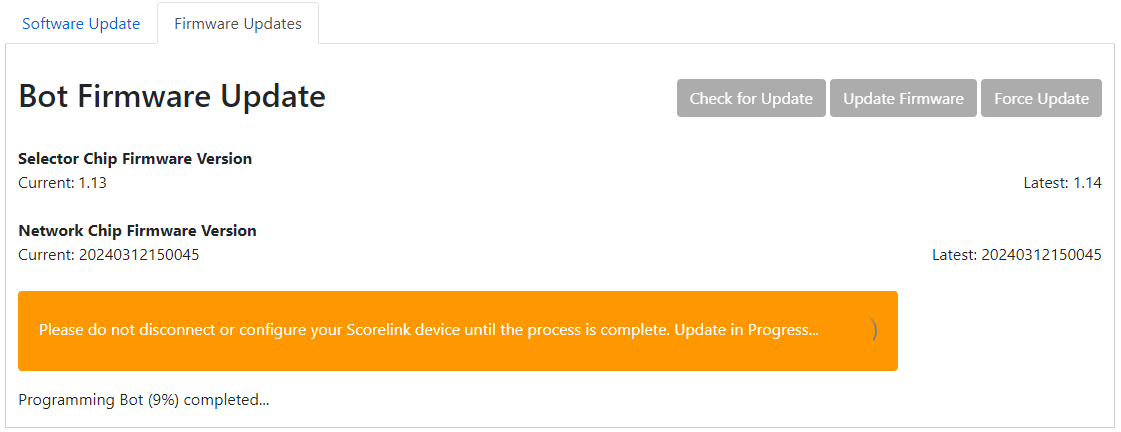
Please update your bot firmware only if absolutely necessary. Perform the update with a reliable internet connection and do not interrupt the update process, as this may cause damage to your device. If you encounter any issues, please contact support.
In the main menu go to Other > Updates > Firmware Updates
The firmware updates page will display the bot that is currently selected. Always make sure that the bot you intend to update is the one that is Listed

NOTE: When USB ScoreLinkII is selected, you may see the bot number 0. This is a normal behavior
Click Check for Update button. Any available updates will be shown and the Update Firmware button will be enabled.
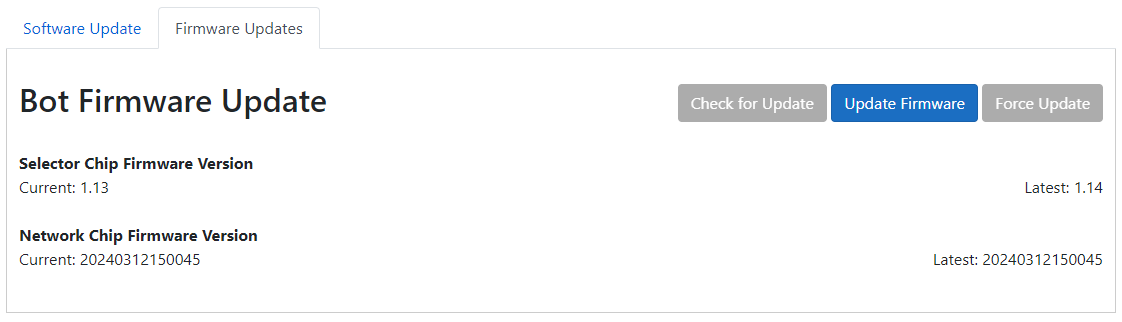
Click Update Firmware to start the process.
If Firmware versions are up to date, the Force Update button allows for the bot to execute the update again in case a previous update failed.
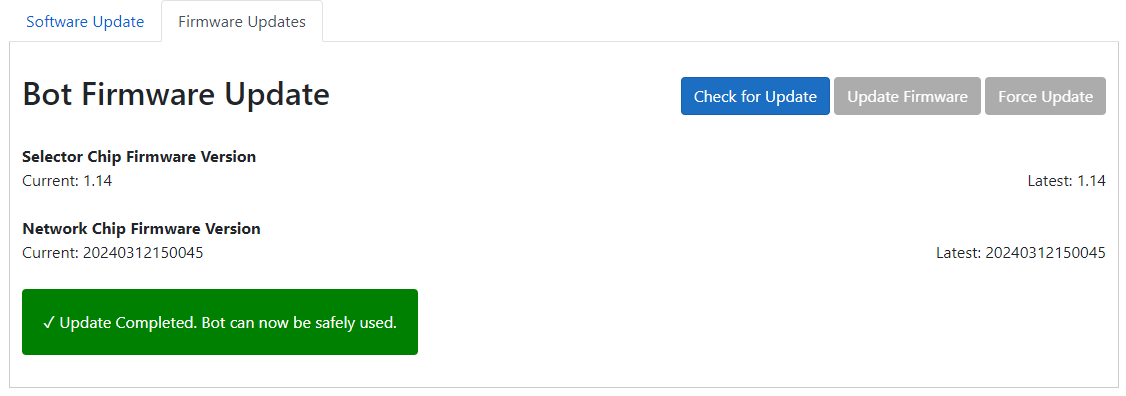
Once completed, the firmware version will be updated, and the bot can be safely used.