ScoreConnectIII on Linux and MacOS
Linux Version
Installation
Debian based distributions
ScoreConnectIII can be installed using the following command.
sudo dpkg --install scoreconnectiii_1.1.5.6_amd64.deb # Check your downloaded version
RedHat based distributions
ScoreConnectIII can be installed using the following command.
sudo rpm --install scoreconnectiii-1.1.5.6-1.x86_64.rpm # Check your downloaded version
For access from other computers in your network to the ScoreConnectIII webpage, firewall configuration might be required (firewall-cmd, iptables).
Linux Service and Auto Start
The installer will attempt to install a Linux service using the default Service Manager from your distribution but will not start or enable the service.
For systemd, use the following commands to start and enable the service at boot.
sudo systemctl start scoreconnectiii
sudo systemctl enable scoreconnectiii
Uninstall
To uninstall follow your distribution's standard procedure: For Debian based distributions
sudo dpkg --remove scoreconnectiii
For RedHat based distributions
sudo rpm --erase scoreconnectiii
MacOS Version
Download
MacOS version is available for download at https://www.sportzcast.net/ with two options:
⚠️ This is not an installer, the zip file contains the executable file to run SCIII directly, any “installation” should be handled by the user. ⚠️
- ScoreConnectIII MacOS x64 Binaries (Zip Download)
- This is for intel based x64 MacOS versions, older Mac models.
- ScoreConnectIII MacOS ARM64 Binaries (Zip Download)
- This is for Arm based MacOS versions, MacBooks with M1 and M2 chips
Execution
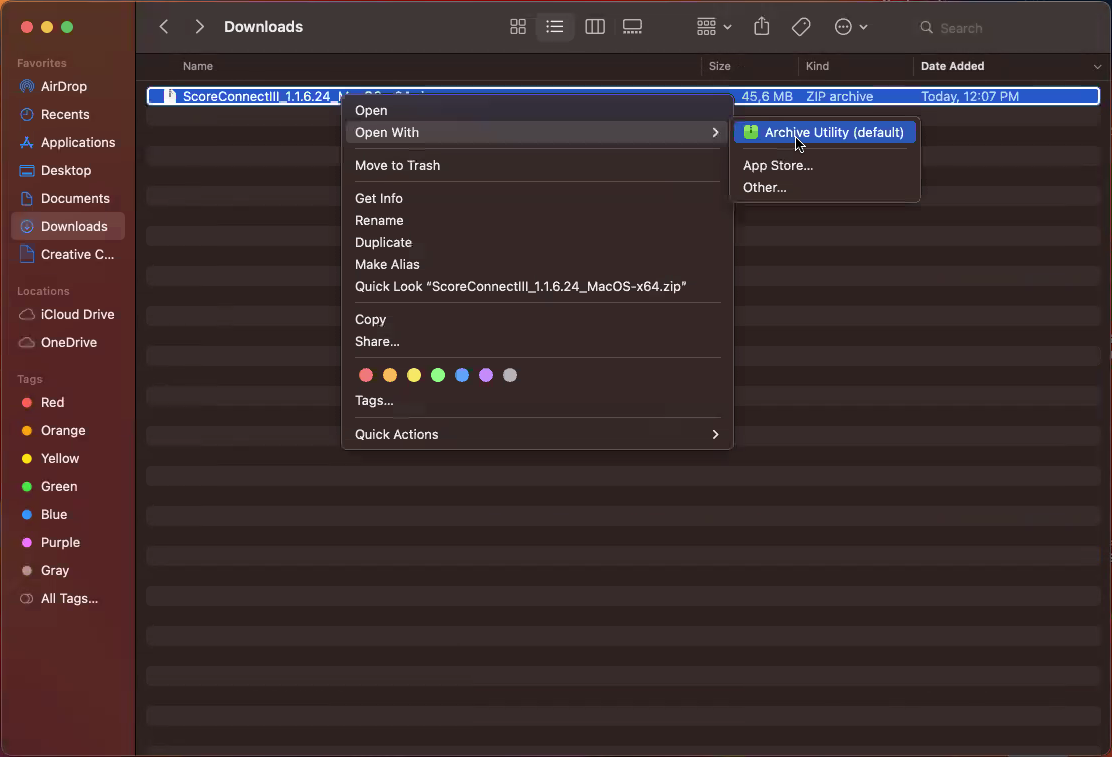
Once the file is downloaded, double click it to extract or use your preferred compressing software.
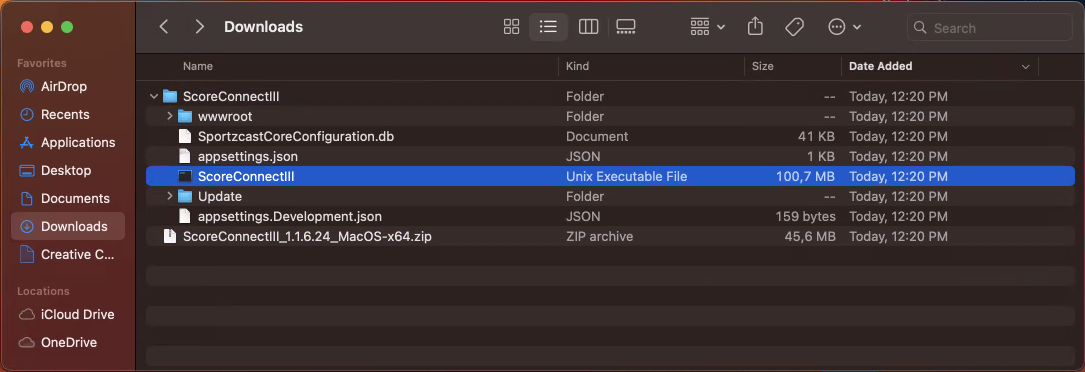
A new folder called ScoreConnectIII should have been created, open it, then double click the file called ScoreConnectIII (type Unix Executable File see Kind column)
Due to MacOS security policies, the OS might show a warning like this
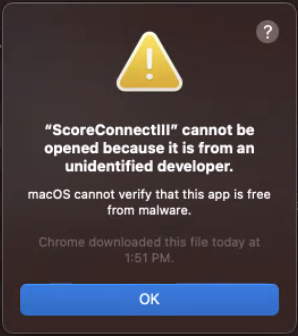
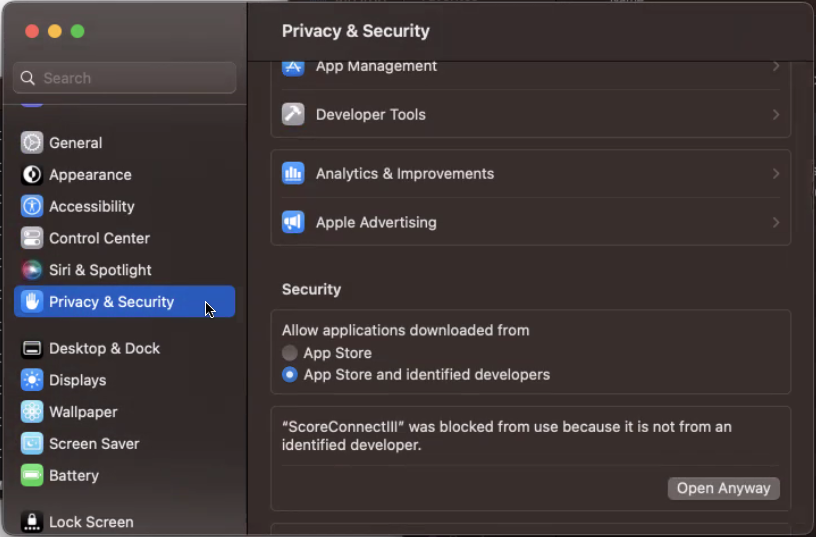
To solve this, open System Preferences. Go to Security & Privacy. Click the Open Anyway button in the General pane to confirm the intent to open or install the app. Official Apple docs
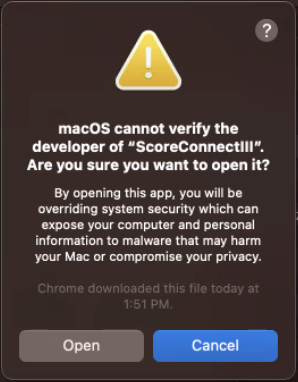
An additional warning might pop up again to confirm the intent. Click Open.
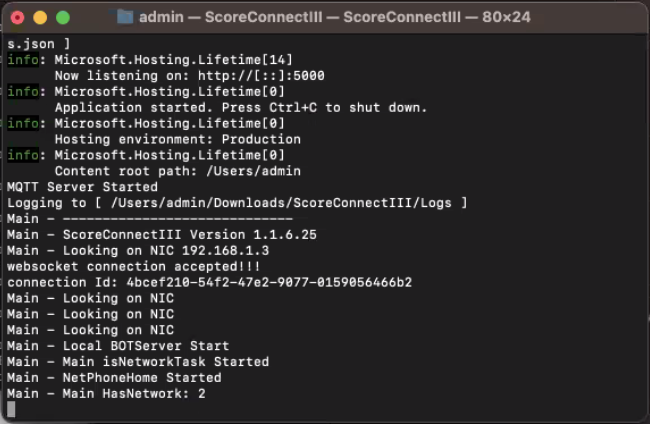
A terminal should open with the logs of ScoreConnectIII, if no errors appear, use the browser to navigate to http://localhost:5000
Troubleshooting
In case you are unable to reach http://localhost:5000
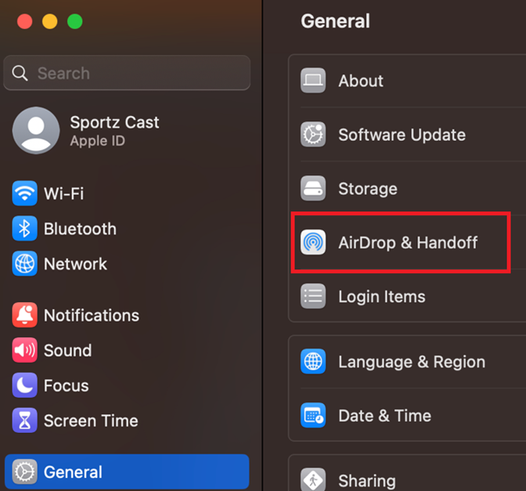
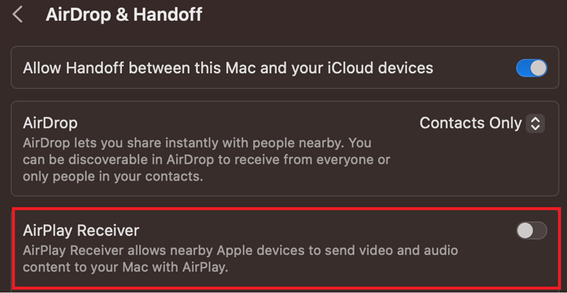
- Airplay might be using the port 5000, go to System Settings > General > AirDrop & Handoff > Toggle AirPlay Receiver to OFF. Relaunch ScoreConnectIII.